
Use a freeform Cross-Sell Map
This article is for Crush users who want to build a Cross-Sell Map from scratch on an Account Plan. Use Use a template-based Cross-Sell Map when your admin has already defined the grid.
Relationship Map-only customers do not have Cross-Sell. This page is Crush-only.
When to use freeform
Choose Free Form when:
- The products and account slices for this plan are not already in a Cross-Sell Template.
- You need to add or remove rows and columns as the conversation changes.
- Values will be entered by the team, not pulled from Salesforce records.
Freeform maps do not link a cell to a Salesforce opportunity definition. You cannot open or edit an Opportunity from the cell panel. Record those deals in Salesforce as usual, then type the figures you want on the map.
Create the map
- Open the Account Plan.
- Open the Cross-Sell section.
- Click Create New Cross-Sell Map.
- Choose Free Form.
Edit rows and columns
Rows and columns are editable only on freeform maps (and on older legacy template maps that still use tiles). A modern template map hides Edit Rows & Columns.
- Open the gear on the Cross-Sell Map.
- Click Edit Rows & Columns.
- Add the products (rows) and account slices (columns) you will actually work this period.
- Save.
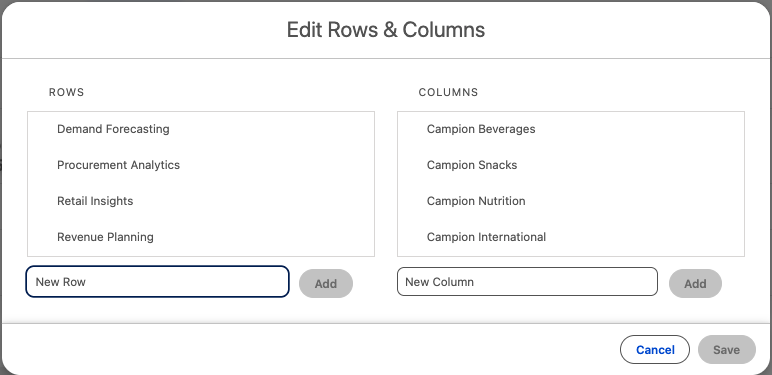
Ten unused rows help nobody. Add intersections as you need them.
Fill a cell
On a freeform map, the cell starts empty. Adding a value places a tile (a node) in that cell — you see the node itself, not a placeholder mark.
- Click the empty cell (or add another tile if the cell already has one).
- In the cell panel, pick the amount type you are entering — for example Current Spend, Competitor, or Upside.
- Type the figure. Values are free-form; the map does not query Salesforce for them.
- Optionally set the primary amount type. That type is the header on the tile.
- Optionally set a highlight and any data types.
- Add notes if the cell needs context.
You do not need every intersection on day one.
What you will not see (compared with a template map)
- No Salesforce-filtered totals. Amounts stay what someone typed.
- No opportunity edit from the map. The cell has no linked Opportunity to open.
- No data-type color on the cell. Data types still appear in the cell panel; their option color does not paint the tile. Template maps show that color as a chip in the cell.
- No yellow notes mark on the grid. Template summary cells show a yellow notes mark when notes exist. Freeform keeps notes in the panel.
Filters, formulas, and score
Use the filter control in the header to show or hide highlights, amount types, rows, and columns.
Summary formulas (gear → New Summary Formula) add calculated row and column totals from the amount types on this map. They are not amount types and do not appear in the amount type filter.
Filled cells feed the Cross-Sell component of the Account Plan Score.
Errors and edges
- Edit Rows & Columns is missing. You are on a template-based map. Rows and columns are fixed. Create a freeform map if you need to change the grid.
- I cannot edit an opportunity from this cell. Expected on freeform. Open the Opportunity from Salesforce, or use a template map whose cells map to Opportunity records.
- A number I typed does not match Salesforce. Freeform does not sync. Update the cell, or move this plan to a template map if the org wants live totals.
- Primary amount type is blank on the tile. Set it in the cell panel. Other amount types still save; only the primary type is the tile header.