
Use OmniViewer
This article is for anyone reading a Relationship Map before a call. When you finish, you can pull up everything the org knows about one person — ratings, groups, relationships, open work — in one panel, without losing your place on the map.
You do not need Crush or an Account Plan. OmniViewer opens from a contact card on a standalone Relationship Map.
What OmniViewer is
OmniViewer is a 360-degree contact profile viewer. It gathers what is already in Salesforce and in your maps about one person and shows it in a single panel, organized into tabs.
It is a reading tool. The Profile tab has an edit control that opens the contact record, but everything else is there to be read — to change influence and support, use Add people and set influence and support.
Before you start
- The map has the person on it.
- Your admin has switched on Enable OmniViewer context menu in Relationship Map Settings. Package install leaves it off, so an admin must enable it before the menu appears.
Open it
- Open the map.
- Right-click a contact card.
- Select Open OmniViewer details.
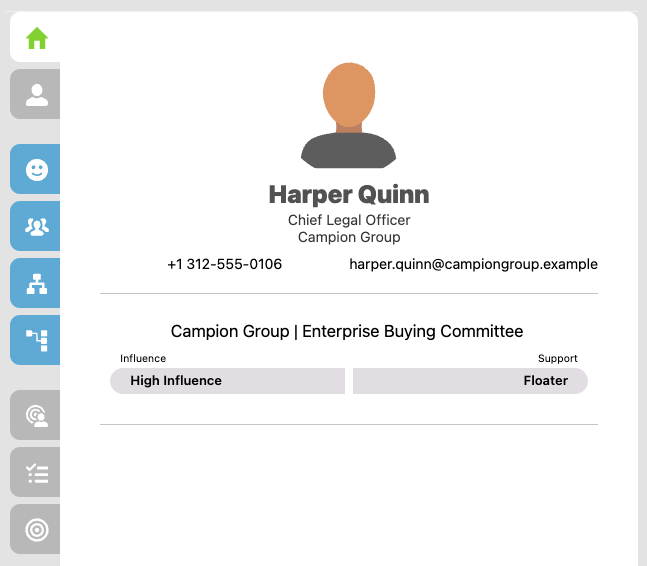
The panel opens over the map, with the tabs down the left side.
When the setting is on, opening a contact card's details from the card itself also opens OmniViewer instead of the standard contact record.
To leave, close the panel. The map is where you left it.
What each tab shows
| Tab | What you get |
|---|---|
| Home | Name, photo, phone, email, last activity, and this person's influence and support at a glance |
| Profile | The contact's field detail |
| Influence & Support | Their rating on this map, under Current Map, and their ratings on Other Maps |
| Contact Groups | The groups this person belongs to |
| Hierarchy Relationships | Who they report to and who reports to them |
| Custom Relationships | The relationship lines drawn to and from them — see Draw relationship lines |
| Opportunities | Opportunities this contact is connected to |
| Tasks | Tasks associated with them |
| Campaigns | Campaign membership, so you can see marketing's touches before you call |
Some page headers inside the panel read slightly differently from the tab names — for example, Tasks opens a page headed Related Tasks. Same content.
The tabs are the same for everyone. There is no per-org tab configuration.
Where it earns its place
Two moments make OmniViewer worth the extra click:
- Before a first call with someone you inherited. Campaigns and tasks tell you what your company has already done to this person, which is the difference between a warm opener and an embarrassing one.
- When the same name sits on several maps. Other Maps on the Influence & Support tab shows whether a colleague rated them differently somewhere else. Two teams rating the same executive Champion and Blocker is a conversation worth having.
When something is missing
| What you see | Usual cause |
|---|---|
| No Open OmniViewer details in the menu | Enable OmniViewer context menu is off, or you right-clicked a card that is not a contact |
| NOT SET under influence or support | Nobody has rated this person on that map yet |
| Other Maps is empty | This person is only on this map |
| A tab says there is nothing to show | There are no records of that kind for this contact — OmniViewer only reads what Salesforce holds |
| Click here to refresh appears across a tab | The data behind that tab changed; click it to reload |
| You cannot change a value you see | Most tabs are read-only; edit the contact from the Profile tab, or set ratings on the map |
Placeholder, lead, and user cards do not open OmniViewer. It is built around a contact.