
Org settings and setup checklist
This article is for the Salesforce admin finishing first-time setup. When you finish, go-live settings are on and you can prove access. There is no product page that grades the install — use the checklist below.
Skip Crush-only rows if you installed Relationship Map only.
Open settings
- Open the PROLIFIQ CRUSH app (Crush) or the Relationship Map app.
- Open Org Settings for Crush-wide choices.
- Open Relationship Map Settings for map defaults (auto-layout, card style, tabs).
Change only what you need for the first week.
Crush go-live settings
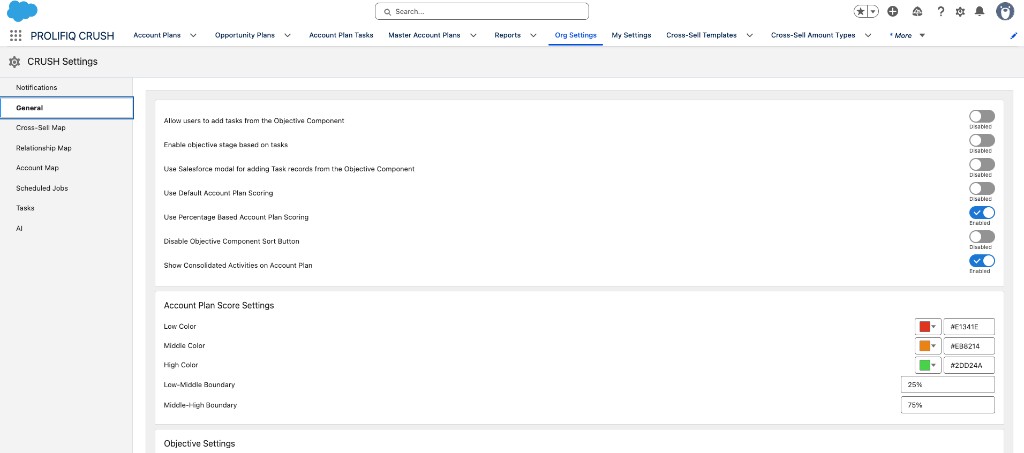
Decide these on Org Settings (names can vary slightly; use what you see):
| Topic | What to decide |
|---|---|
| Notifications | Who is notified on plan events. On for owners and team members if you use Crush. |
| Account Plan transfer | What happens to a plan when the owner leaves. Confirm with Customer Success before production. |
| Account Team access | Whether Salesforce Account Teams can see plans. Leave off unless the customer already lives in Account Teams. |
| Auto generate Relationship Maps | Whether a map is created automatically. Leave off until a pilot user has built one map by hand. |
| Scoring | Keep the default 60-point completeness model unless Customer Success says otherwise. |
| Present templates | If you will Present this quarter, create at least one Account Plan Template. Users select a template; admins build them. |
Relationship Map defaults
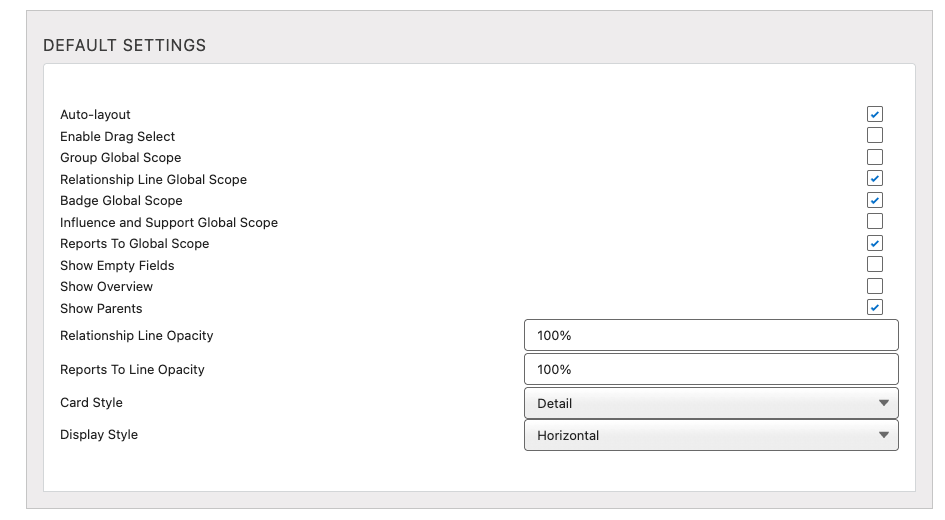
On Relationship Map Settings, set defaults the first maps will inherit:
- Auto-layout, Display Style (Horizontal / Vertical), Card Style (Detail / Compact / Fixed Size)
- Lead Tab / User Tab if people will add Leads or Users
- Create New Contact if reps should create contacts from the map
- Show Chart Settings so editors can change layout on one map
- Enable Grouping if you want groups on day one
Leave Omni Viewer, badges, clone map, and suggested contacts until you have a reason. Badges and Omni have later articles.
Setup checklist
- Package installed for Admins Only. Install.
- Every pilot user has a permission set. Assign permission sets.
- A test user sees PROLIFIQ CRUSH and/or Relationship Map in the App Launcher. Find the app.
- If you will use AI generate: External Credential + Named Credential (created in this org), CRUSH AI Config → Default pointed at that credential, AI permission sets, and the callback integration user. Configure AI map generation.
- A test user can create an Account Plan (Crush) or a map on an Account (Relationship Map-only).
- If you will Present: one Account Plan Template exists.
You are done when that test user can open a plan or a map without you.