
Present an Account Plan
This article is for Crush users who need to walk someone through an Account Plan — a QBR, an executive review, or a handoff. When you finish, the plan opens in a clean full-screen view with no Salesforce navigation around it.
Relationship Map-only customers do not have Presentation Mode. This page is Crush-only.
Before you start
- You can open the plan. Plans are private: see Add team members and share a plan.
- Your org has at least one Account Plan Template. Templates decide which components appear. Admins and template creators build them; you only select one.
- You have whichever permission set your org uses for presenting. Some releases ship a separate Account Plan Presenter set and some fold it into the planner sets — assign what exists in your org, or follow your Customer Success representative. See Assign Crush and Relationship Map permission sets.
- The plan has something in it. Presentation Mode shows what is on the plan; it does not invent content.
Present the plan
- Open the Account Plan.
- Click Present in the top right.
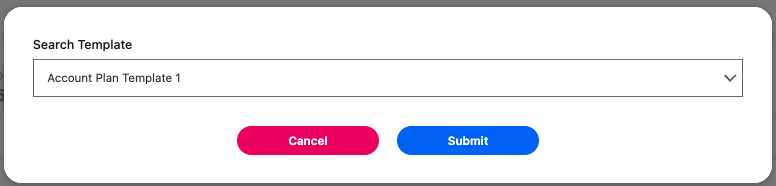
- In Search Template, start typing the template name, or open the dropdown and pick from the list.
- Click Submit.
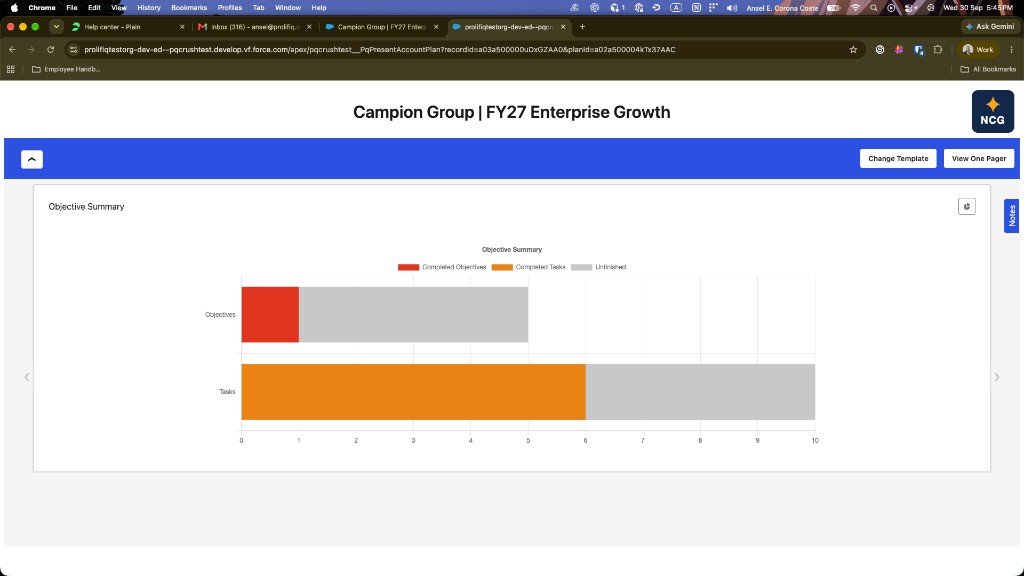
The plan opens in a new browser tab in full-screen view: the plan name as the title, and one component per screen in the order the template defines.
Submit stays greyed out until you actually select a template from the list. Typing the name is not enough — click the name in the dropdown.
If an admin marked a template as the default, Present skips the picker and goes straight into that template. That is expected, not a bug.
While you are presenting
| Control | What it does |
|---|---|
| Left and right arrows | Move to the previous or next component |
| Change Template | Swap to a different template without leaving the presentation |
| View One Pager | Generate a condensed single-page summary you can print or save as PDF |
| Notes | Open the notes panel on the side |
Change Template opens an Available Template dialog with the same search-and-Submit pattern. It reloads the presentation in the tab you are already in, so you do not collect tabs during a meeting.
Notes are saved against the plan and the template you are presenting, and they show the author's name and the time. Treat them as shared meeting notes, not private scratch text.
To brand the output, use Upload Logo on the Account Plan. Template builders can also add branding to the template. Presentation Mode uses those logos; there is no separate logo control inside the presentation tab.
Practice run
Do this once before a real meeting, not five minutes before:
- Present the plan with the template you plan to use.
- Step through every component. Anything empty on the plan presents empty.
- Fix the gaps on the plan itself, then present again. The presentation reads from live data.
The Account Plan Score is a fast way to find which sections are thin before you get in front of anyone.
When it does not work
"Template is not available. Please connect to the admin for assistance." There are no Account Plan Templates in your org at all. You cannot fix this from the plan — an admin or a template creator has to build one.
Your template is not in the dropdown. The dropdown shows only the first few templates until you search. Type part of the name and it will appear.
"No Data Found" under the search box. Nothing matches what you typed. Templates are named by whoever built them, so the name may not be what you expect. Clear the box and browse the list instead.
Nothing opens when you click Submit. Presentation Mode opens in a new tab. Check your browser's pop-up blocker for this Salesforce domain.
A component you expected is not there. See Presentation Mode is missing something.