
Work with objectives and SWOT
This article is for Crush users who already have an Account Plan. When you finish, the plan has objectives someone is accountable for and a SWOT that a manager can read without asking you what it means.
Relationship Map-only customers do not have objectives or SWOT. Both live on an Account Plan, so this page is Crush-only. If you do not have a plan yet, start with Create your first Account Plan.
Why these two sections together
Objectives and SWOT are the two halves of the same sentence. SWOT is what you believe about the account; objectives are what you are going to do about it. They are also the two components teams most often leave blank, and each is worth up to 10 points of the default 60-point Account Plan Score.
That score is plan completeness, not account health. A full SWOT means the thinking is written down — not that the account is safe.
Add an objective
- Open the Account Plan.
- Open Objectives, either from the Quick Access Row at the top of the plan or from the Strategy tab.
- Click New Objective.
- Fill in:
- Objective Name — the outcome, not the activity. "Renew and expand the services line" beats "Have meetings."
- Description — what the objective involves and why it matters this period.
- Next Steps — the immediate action. This is the field a manager reads first in a review.
- Percentage to Goal — how close you are. Leave it at zero rather than guessing high.
- Save.
If the list is empty you will see a prompt telling you to click New Objective to create one. That is the normal empty state, not an error.
Keep it to roughly three to seven objectives per plan. Past ten, the plan has quietly become a task list and nobody reads it.
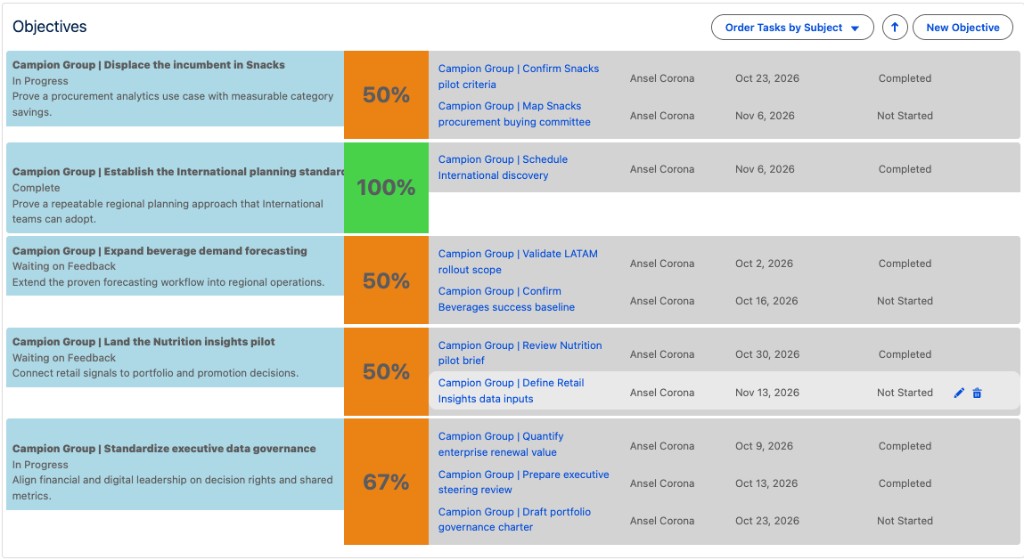
How Stage works
Stage tracks where the objective is:
| Stage | Meaning |
|---|---|
| Not Started | Created, no work done. This is the default |
| In Progress | Work is underway |
| Waiting on Feedback | Blocked on the customer or someone else |
| Complete | Done |
Stage normally advances on its own as the tasks linked to the objective are completed. If you need to set it by hand — the work happened outside Salesforce, or the automatic stage does not reflect reality — use Stage Override. Whether override is available is an Org Settings choice, so it may not be turned on in your org.
Use override sparingly. An objective that is permanently overridden to Complete with no tasks behind it tells a manager nothing.
Link tasks to an objective
Tasks are how an objective moves. You can add a task from the objective record, or with the add control inside the Objectives component on the plan.
There is a difference worth knowing. A task created on the objective record is related to that objective directly. If your org uses the in-component add-task control, Crush links the Task through a separate Objective Task Association and leaves Related To blank. Those tasks appear in the component and in the report type that includes objective task associations, but not in ordinary objective-and-task reports. If Use System Create Task Modal is on, the Salesforce task window sets Related To to the Objective instead. See Report on Prolifiq data in Salesforce.
Read the Objective Summary
The Strategy tab shows the Objective Summary chart above the objective list: completed objectives, completed tasks, and what is still unfinished, followed by the objectives as progress bars.
Read it for shape, not for a number. A plan where everything sits at In Progress with no completed tasks is a plan nobody has worked since it was written.
Fill in the SWOT
The SWOT is a four-quadrant matrix on the plan's SWOT tab: Strengths, Weaknesses, Opportunities, and Threats.
- Open the Account Plan and go to the SWOT tab.
- In the quadrant you want, start a new item. The dialog is titled Create SWOT Analysis Item.
- Write the item. The description is rich text, so you can format it, but short entries read better in a review than paragraphs.
- Save. The item appears in that quadrant.
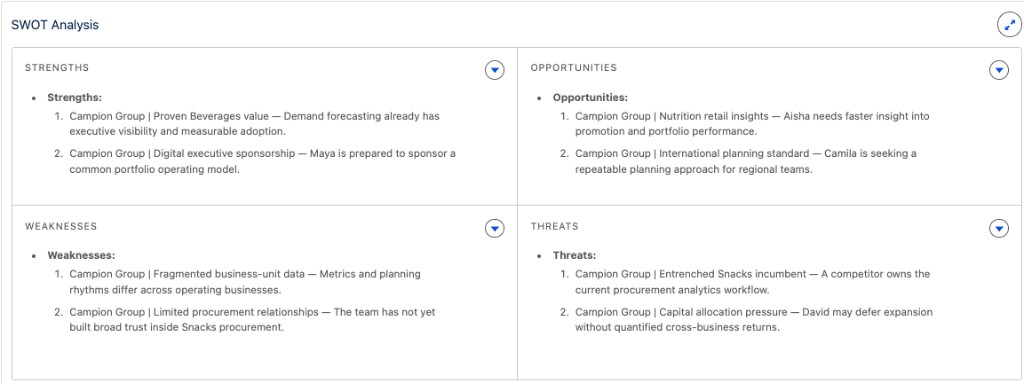
To remove an item, delete it from the quadrant and confirm in the Delete SWOT Analysis Item dialog. Deletes are not undoable — there is no recycle step inside the component.
What belongs in each quadrant:
| Quadrant | What goes here |
|---|---|
| Strengths | What is working in your favour — an engaged champion, strong adoption, a reference win |
| Weaknesses | Where you are exposed — a single point of contact, an unresolved support issue, no executive sponsor |
| Opportunities | Where you could grow — a new business unit, a champion who was promoted, a contract event |
| Threats | What could cost you the account — a competitor in the door, a budget freeze, a sponsor who is leaving |
Write items someone else could act on. "Good relationship" is not a strength; "VP of Operations has run two internal rollouts for us and will take a reference call" is.
A quadrant you genuinely believe is empty is still worth a one-line item saying so. An empty quadrant is indistinguishable from an unfinished one, both to your manager and to the score.
Keep both current
- Update Next Steps whenever the next step changes. It is the field that goes stale first.
- Revisit the SWOT at each quarterly review and before a renewal, rather than editing it continuously.
- When a threat becomes real, it should turn into an objective with an owner and a next step. A threat sitting in the SWOT for three quarters with no matching objective is the most common gap a manager will find.
- Plan team members are notified when objectives change and when any SWOT quadrant is modified, so bulk cleanup will generate email. Do it in one pass rather than over a week.
When something is not right
No New Objective button, or the SWOT is read-only. You have view access to the plan, not edit. Ask the plan owner to change your role on the plan team.
The SWOT tab is missing. The tab is not on the page layout for your org, or you are looking at a record page an admin has customised. Ask your admin.
Your quadrants are named something else. Admins can rename the four quadrant labels through the Salesforce Translation Workbench. If your org shows different words, use what you see — the behaviour is the same.
Stage will not change. Either the linked tasks are not complete, or Stage Override is turned off in Org Settings so automatic progression is the only path.
The objectives score did not move after you added objectives. Scores recalculate on the plan; reload the plan before assuming it is broken. If the score still looks wrong, your admin may have changed the scoring weights.
Tasks you created are missing from a report. See the task-linking note above.