
Report on Prolifiq data in Salesforce
This article is for anyone who needs Crush or Relationship Map data in a Salesforce report. When you finish, you know where the shipped reports live, which report types you can build on, and which questions need a different approach.
Reporting uses the standard Salesforce report builder. Nothing here is a separate reporting product, and there is no export that lives outside Salesforce.
Find the shipped reports
The package installs reports into folders you open from the standard Reports tab.
- Open the Reports tab.
- Go to All Folders.
- Open Account Plan Reports (Crush) or Relationship Map Reports (maps).
Dashboards work the same way from the Dashboards tab, in Account Plan Dashboards and Relationship Map Dashboards.
You may not see these folders. Report and dashboard folders are shared by your Salesforce admin, and the dashboard folders in particular are often left restricted because they aggregate across the whole org. If a folder is missing, you are not broken — you have not been given access. Ask your admin to share the folder with you, or to assign the permission set that covers it.
The shipped reports are ordinary reports. Anyone with the rights to edit them can change them, so treat them as starting points and save your own copies rather than editing the originals in place.
Report types you can build on
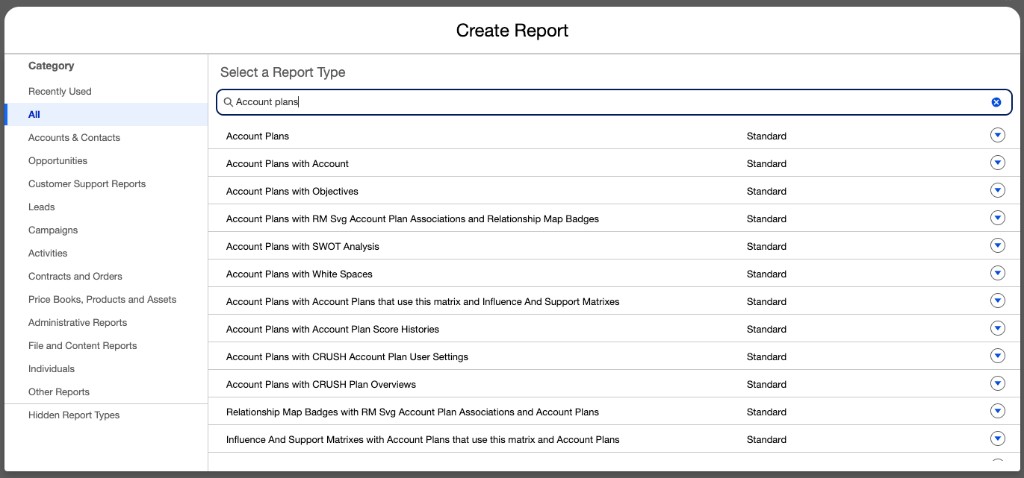
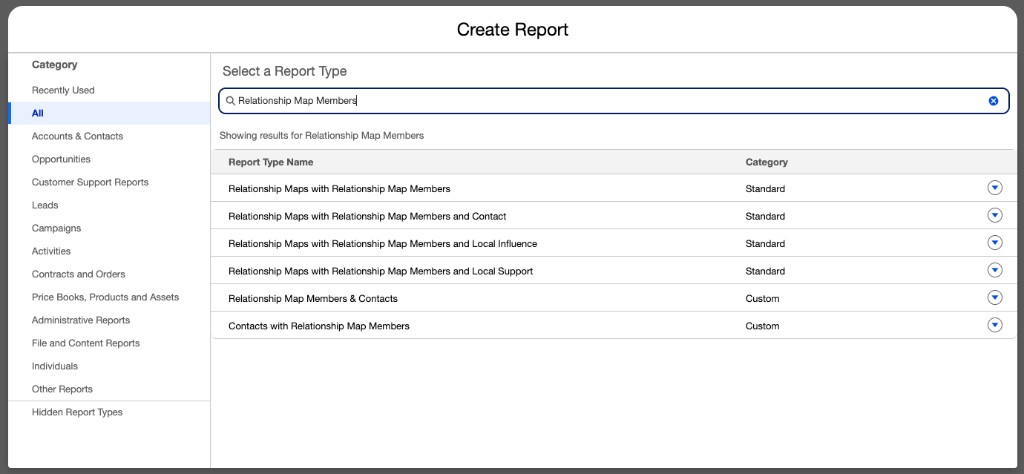
Click New Report on the Reports tab and search for these. The names below are the labels in the current package; confirm against your org, because the package has renamed report types across versions and older documentation uses friendlier names that no longer match.
The search also returns Standard types Salesforce builds when Allow Reports is on for those objects. Those are usable, and they pick up custom fields. The Custom types are the ones that ship in the package and cannot be edited.
Account Plans (Crush)
| Report type | Use it for |
|---|---|
| Account Plans | Portfolio overview and plan status |
| Account Plans with Objectives | Objective tracking across plans |
| Account Plans with Objectives with Objective Task Associations | Objectives plus the tasks created in the Objectives component |
| Account Plans with Key Stakeholders | Stakeholder coverage |
| Contacts with Key Stakeholders | The same coverage question read from the Contact side |
| Account Plans with Team Members | Who is on which plan |
| Account Plans with Opportunities | Pipeline against planned accounts |
| Account Plans with Tasks | Activity across plans |
| Key Dates with Account Plans | Milestones and deadlines |
Relationship Map
| Report type | Use it for |
|---|---|
| Contacts with Relationship Map Members | Which contacts are on a map, and coverage gaps |
| Relationship Map Members & Contacts | Map membership with contact detail |
Cross-Sell / white space (Crush)
Cross-Sell data is spread across several objects, so the report types are long-named joins — Account Plan White Space and the Account Plans with White Spaces with… family. Pick the one whose name ends at the object you actually need. If you only want to know which plans have a grid at all, start with Account Plan White Space.
Build a report
- Reports tab → New Report.
- Search for the report type and click Start Report.
- Add your groupings — Account Plan is the useful first group for almost every Crush report.
- Add columns, then set filters. Widen the date range before you conclude there is no data; the default range hides older records.
- Save into a folder other people can reach, not your private folder.
Questions people usually ask, and what to build
- Which plans are thin? Account Plans, grouped by owner, with the score as a column. Remember the score is plan completeness, not account health — a low score means the plan is unfinished, not that the account is at risk.
- Which accounts have no champion? Contacts with Relationship Map Members, filtered on the support value.
- Which objectives have stalled? Account Plans with Objectives, filtered on stage and last modified date.
- Who is carrying too many plans? Account Plans with Team Members, grouped by the team member.
What you cannot do
You cannot add custom fields to the shipped report types. The custom report types are part of the managed package, so they are locked. This is the single most common surprise.
The way around it is to use standard report types instead, which do pick up your custom fields. If an object has no standard report types yet, an admin enables them:
- Setup → Object Manager → the object.
- On Details, click Edit.
- Tick Allow Reports and save.
- Back on the Reports tab, New Report now offers standard report types for that object, including your custom fields.
Whether this is already on varies by object and by which version of the package you installed, so check before assuming it is missing.
The Field History component on an Account Plan is not reportable. It is the quickest way to see what changed on one plan, and that is all it is.
Reporting on change over time
Salesforce objects do not keep history for reporting unless you set it up. Three options, in increasing order of effort:
- Account Plan Score History — a scheduled job in Org Settings that snapshots every Open plan's score weekly. Closed plans are skipped. Start it once and it feeds score trend over time, including the trend chart on a Master Account Plan. See Use Master Account Plans.
- Historical Trend Reporting — quick to enable on any object, but limited to roughly the current month plus three months back.
- Reporting Snapshots — more setup, far fewer limits, and the right answer if leadership wants a year of trend.
None of these backfill. Whatever you turn on starts collecting from that day, so turn it on before the quarter you want to report on.
When a report looks wrong
Tasks are missing from an objectives report. When your org uses the in-component add-task control, Crush links the Task through an association record and leaves Related To blank, so ordinary objective-task reports skip it. Use Account Plans with Objectives with Objective Task Associations, or ask an admin about the Use System Create Task Modal setting. See Work with objectives and SWOT.
The report returns fewer rows than you expect. Salesforce sharing applies to reports. You only see records you have access to, and Account Plans are shared privately, so a report you run and a report your manager runs will legitimately differ.
A report type is not in the list. Either the package version you have does not include it, or standard report types have not been enabled for that object. Check the Allow Reports step above.
Numbers differ from what the plan shows. Check the report's date filter first. Component views on the plan are usually unfiltered; reports are not.