
Use Master Account Plans
This article is for Crush managers and admins who plan several related accounts. When you finish, a Master Account Plan rolls up a set of Account Plans so you can review objectives, opportunities, maps, and scores in one record instead of opening each plan.
Relationship Map-only customers do not have this. Master Account Plans sit on top of Account Plans, so this page is Crush-only.
When this is worth doing
Use a Master Account Plan when one commercial relationship is planned as several Account Plans — a parent account with subsidiaries, divisions, or regions that each have their own plan and owner.
Do not create one for a single-entity account. If there is only one Account Plan, the Master Account Plan adds a second record to maintain and shows you nothing the plan does not already show.
Before you start
- The Account Plans you want to roll up already exist. Create your first Account Plan.
- You have the Master Account Plan permission set. In this package it is CRUSH Master Account Plan User — confirm the exact name in Setup → Permission Sets, because the wording has changed across versions. See Assign Crush and Relationship Map permission sets.
- You can open the PROLIFIQ CRUSH app and see the Master Account Plans tab.
Create a Master Account Plan
- Open the PROLIFIQ CRUSH app.
- Open the Master Account Plans tab.
- Click New.
- Enter the Master Account Plan Name. Name it for the relationship and the period, not for the parent record alone.
- Optionally set Account. Crush then includes Account Plans on that Account and on accounts below it in the Salesforce hierarchy. Leave it blank if you will pick plans one at a time.
- Save.
You now have an empty-looking master record. It fills in as plans are associated and as data accumulates.
Add plans that are not under the Account
The Account lookup does not include a subsidiary outside that Salesforce hierarchy, or a plan on an unrelated Account. Add those by hand.
- Open the Master Account Plan.
- Open the Related tab.
- On the Master Account Plan Associations related list, click New.
- Pick the Account Plan to include.
- Save, and repeat for each plan.
Master Account Plan Associations is a junction record. Adding one does not change the Account Plan itself, and deleting one removes the plan from the rollup without touching the plan.
What each tab shows
| Tab | What you get |
|---|---|
| Overview | The score trend chart, plus the list of associated Account Plans with their Accounts and current scores |
| Objectives | Objectives and tasks across every associated plan. You can create new ones here |
| Strategy | Account Opportunities — the opportunities on the Accounts behind the associated plans |
| Relationship Maps | Relationship Maps and key stakeholders for each plan, with tabs to move between them |
| Related | The Master Account Plan Associations list described above |
The scores you see are plan completeness, not account health. A subsidiary with a low score has a thin plan; it does not mean the relationship is in trouble. See Create your first Account Plan for how the score is built.
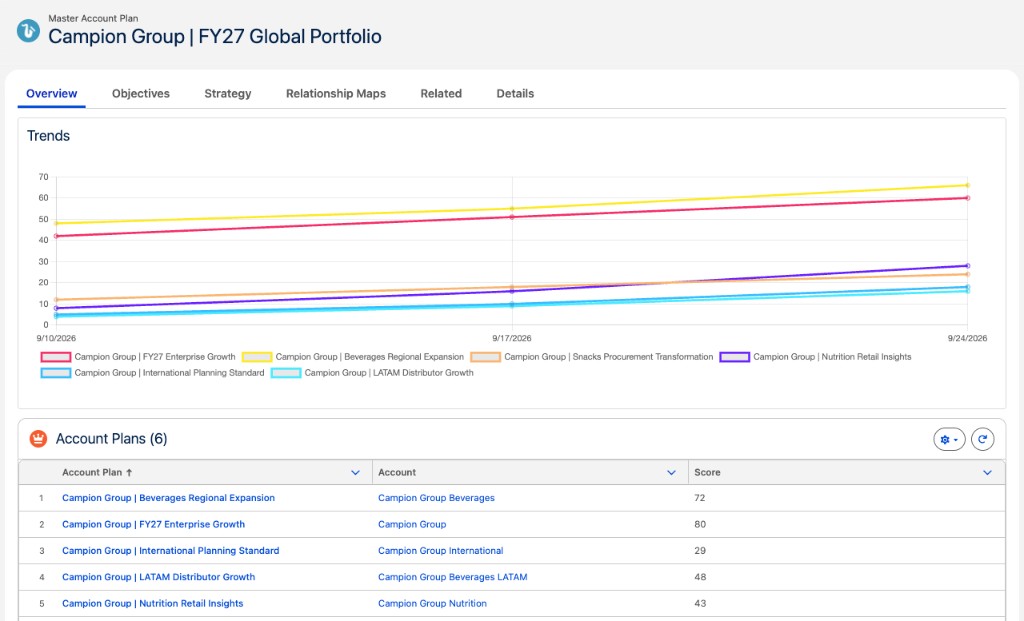
Turn on the score trend chart
The trend chart on Overview is empty until score history is being captured. That is a scheduled job an admin starts once per org.
- Open the PROLIFIQ CRUSH app and go to Org Settings.
- Find Account Plan Score History in the Scheduled Jobs section.
- Start the job.
The job saves a score snapshot for every Open Account Plan once a week — by default at 5:00 AM on Sunday in the org's time zone. Closed plans are skipped. The chart stays empty until the job has run at least once, so expect no trend line for up to a week after you start it. Starting the job does not backfill history from before you turned it on.
Run a portfolio review
- Open Overview and read the plan list. Look for plans that are far behind the others on completeness, and for a plan that should be in the list and is not.
- Open Objectives and scan for objectives with no next step or no movement across the whole portfolio.
- Open Strategy and check that the opportunities on those Accounts line up with what the plans say the team is doing.
- Open Relationship Maps and check the accounts where you have one contact and no champion.
Fix the underlying Account Plan. The master is a reading surface; the work still belongs on each plan.
When something is missing
A plan you expect is not listed. Either it is not related to the Account on the master, or it has no association record. Add it on the Related tab.
The trend chart is blank. The score history job has not run yet, or was never started. See the section above.
A plan is listed but you cannot open it. Account Plans are shared privately. Being on the Master Account Plan does not give you access to a plan you are not on — ask the plan owner to add you as a team member.
The Master Account Plans tab is missing. You do not have the permission set. Send your admin to Assign Crush and Relationship Map permission sets.
Objectives created from the master land on the wrong plan. Objectives belong to a single Account Plan. Check which plan the objective was created under before you re-create it.
Edges worth knowing
- A single Account Plan can be associated with more than one Master Account Plan. That is useful for a plan that belongs to both a regional and a global rollup, and confusing if nobody expects it.
- Changing the Account on an existing master changes which plans come in automatically. Associations you added by hand stay.
- Deleting a Master Account Plan does not delete the Account Plans under it.
- The components on the record page are standard Lightning components. An admin can change filters, columns, and sorting in the Lightning App Builder if a default view does not match how your team reviews.